The Studio
Gamewright Studio is where you make a game: its documents on the left, the game in the middle, the Director and the Inspector on the right, and what the checks found underneath. This page is a tour of the window and its keys. It starts where your first game opens one.
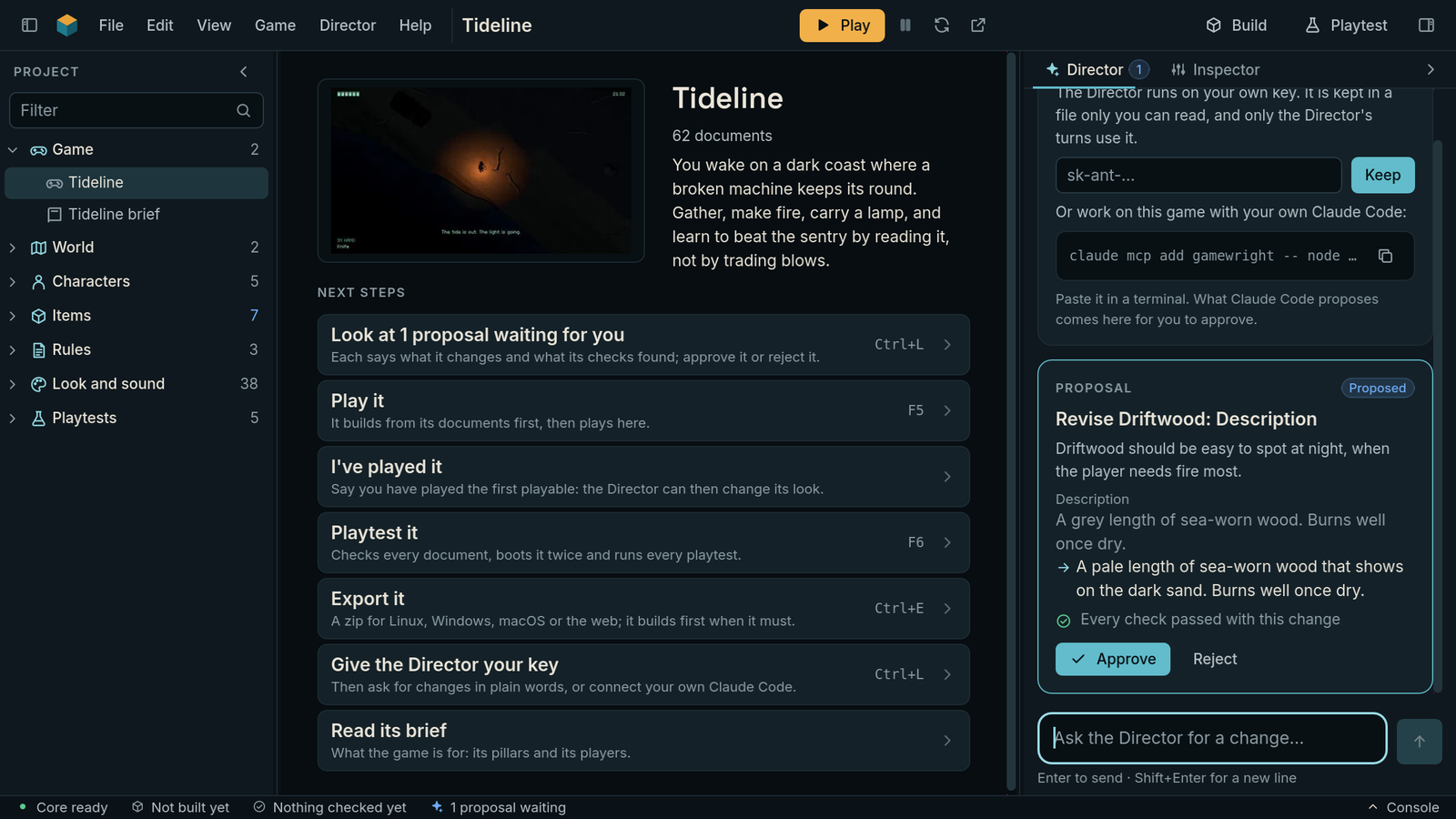
Tideline just opened, with a change the Director proposed waiting on the right. A frame from the Studio's own test, at a laptop's 1280x720.
The window
- The menus: File, Edit, View, Game, Director and Help. On a Mac they are in the menu bar at the top of the screen, and the Gamewright menu holds Settings, About and Quit. On Windows and Linux they are in the window, after Gamewright's mark.
- The header: the game's name; in the middle Play, Pause, Restart, where to start (for a game with levels) and Open in a window; at the right Build, Playtest and the button that shows or hides the dock.
- The project, on the left: every document of the game, in sections (Game, World, Characters, Items, Rules, Look and sound, Playtests) with how many each holds. Type in the filter to find a document by its name, its kind or a word in it. A blue dot on a row is a proposal waiting on that document; a red one is a document that does not build. Right-click a document to open it in a tab, see its JSON, ask the Director about it, or show its file.
- The game, in the middle, always. Before you play it, its start page: its name, a picture of it (its sample's poster, then a frame of it once it has played), what it is, its plan when it has one (each step done, next or to come), and what to do next. Double-click a document to open it in a tab over the game; the game's tab is always the first.
- The dock, on the right: the Director, where you ask for changes and decide on them (its tab counts the proposals waiting), and the Inspector, the fields of the document you chose, to change by hand.
- The console, under the game: Checks, what every check said; Problems, each problem the last check found, which opens its document at the field; Playtests, each of the game's playtests with how it last went, and a button to run one alone. It is folded at first. Running a check opens it, and so does a failure, once.
- The status bar, at the foot: the core (the part of Gamewright that checks, builds and plays the game and runs the Director), the last build, the latest result, the proposals waiting and what the Director has cost this session. Click any of them to go there.
Every panel folds away and comes back (the View menu, or its key below), and its edge drags to make it wider or taller. The Studio remembers how you left them; View ▸ Put the panels back puts them as they were at first.
Play it
Press Play (F5). When the documents changed since the last build, the Studio builds the game first, then plays it in the middle of the window, on the same engine it runs on everywhere else. Play gives the game the keys; click outside it to take them back, and click it to give them again. While you type to the Director, nothing moves in the game.
Pause (F7) holds the game where it is. Restart (Ctrl+R) plays it again from its start, or from the level chosen beside it. Open in a window (F8) plays it in a window of its own, as big as you like, while the Studio stays as it is.
Check it
Playtest (F6) checks every document, boots the game twice and plays every one of its playtests with bots: L0 to L2 of the checks. Game ▸ Check the documents is the quick one, L0 alone, in under a second. In the console's Playtests tab, the button beside a playtest runs it alone, to see a fix without waiting for the rest.
Keys
Ctrl is Cmd on a Mac. Ctrl+K finds anything: a document, a section or a command. Ctrl+/ (or F1) shows every key.
| Key | What it does |
|---|---|
| F5 | Play; it builds first when the documents changed |
| F7 | Pause, or let the game go on |
| Ctrl+R | Play it again from the start |
| F8 | Play it in a window of its own |
| F6 | Playtest: L0 to L2 |
| Ctrl+Shift+B | Build |
| Ctrl+E | Export |
| Ctrl+B | Show or hide the project |
| Ctrl+L | The Director, ready to type to |
| Ctrl+I | The Inspector |
| Ctrl+J | Show or hide the console |
| Ctrl+W | Close the document's tab |
| Ctrl+Z, Ctrl+Shift+Z | Undo and redo your changes to the game, and the proposals you approved |
| Ctrl+=, Ctrl+-, Ctrl+0 | Everything bigger, smaller, or at its own size |
| Ctrl+, | Settings |
Settings
Edit ▸ Settings (Ctrl+,; on a Mac, Gamewright ▸ Settings): the size of everything, the panels put back as they were at first, whether the Studio says when a new version is out (it asks gamewright.diy, and installs nothing), and the Director: your key or your own Claude Code, its model, what it runs on (your key or your Claude plan), the most a turn spends, and when its changes apply (when you approve them, or as soon as every check passes) (the Director). On a short window, Settings scroll.