Your first game
The quickest way to a game of your own is to start from one that already plays. This page walks through that with Tideline, a night coast where a broken machine keeps its round: open it, play it, ask the Director for a change, approve it, and export it for anyone to play. It starts where installing the Studio ends.
Start a game
The Studio opens on its welcome. There are two ways to start a game from it.
Click a sample. The ten sample games are the cards on the right, each a whole game on one of six templates: Tideline (action survival), Lamplighter (a grid puzzle), Acorn Rooftops (a platformer), Fog Signal (a visual novel), Thornwick (a top-down adventure), Saltwell (a twin-stick arena) and more. You can play each of them in your browser first. Click Tideline and the Studio copies it into
Documents/Gamewright/Tidelineand opens the copy, so your changes never touch the sample.New game (File ▸ New game, or Ctrl+N) asks what the game is called and where it starts:
- From a template: the template's starter, the smallest game on it, playable at once in its sample's look and sound.
- From a sample: one of the ten, as it is.
- From nothing: an empty folder, where the Director begins with the game's brief (the Director says how).
Its folder goes in
Documents/Gamewrightunless you choose another. Make the game makes it and opens it.
Either way the game is a folder of your own, and every change you make or approve is written there. If you keep your work in git, make the folder a repository and leave out the Studio's own files: then every change you approve becomes a commit, made as your own git user.
cd ~/Documents/Gamewright/Tideline
git init && echo .gamewright/ > .gitignore
The Studio opens the game on its start page: its name, what it is, and what to do next.
The window
- The project, on the left: every document of the game in sections, with how many each holds. Choose one to see its fields in the Inspector.
- The game, in the middle: its start page until you play it, then the game itself.
- The Director and the Inspector, on the right: where you ask for changes and decide on them, and the fields of the document you chose.
- The console, under the game, and the status bar at the foot: what the checks found.
- Along the top: the menus, Play, Pause, Restart, Open in a window, Build and Playtest.
The Studio is a tour of the window and its keys.
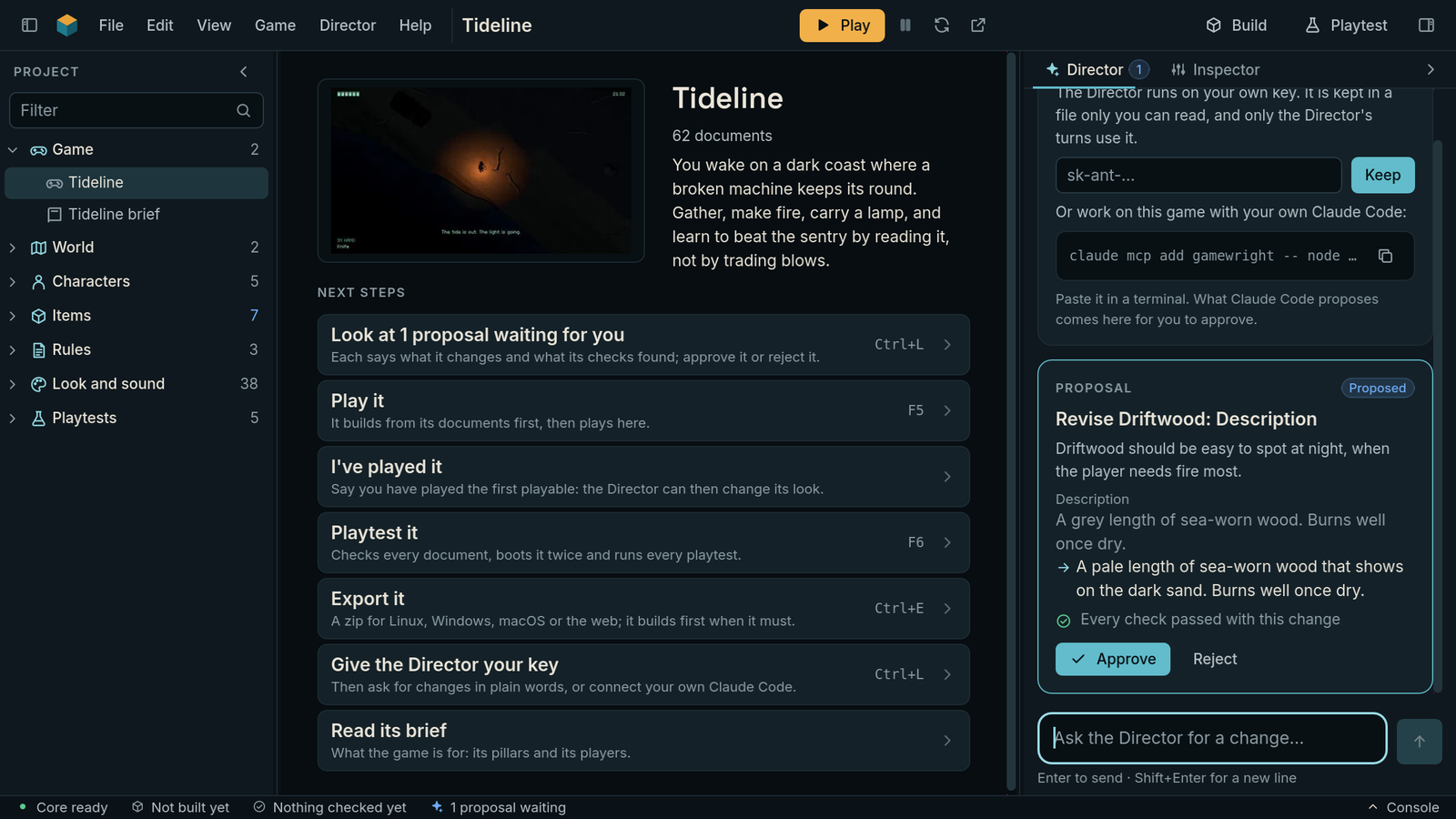
Tideline just opened, with a change the Director proposed waiting on the right. A frame from the Studio's own test, at a laptop's 1280x720.
Play it
Press Play (F5). The first time, the Studio builds the game: it checks it and writes the
bundle the player runs, in .gamewright/build/ inside your game's folder. Then it plays it in the
middle of the window, on the same engine the game runs on everywhere else. Each time the
documents change, the next Play builds again first.
Play gives the game the keys; click outside it to take them back, and click it to give them again. The Studio's own keys still work while the game has them (F7 pauses, Ctrl+R plays again from the start, Ctrl+Shift+B builds): each is Ctrl and a key, or a function key, which no game uses. While the Director's box has the keys, typing there never moves anything in the game.
Check it
Playtest (F6) boots the game twice and needs the same result both times, then plays every one of the game's Playtests with bots. The console opens as it runs; when it is done it says, for Tideline, "Every check passed", a line for each rung, and the Playtests tab shows each playtest passed. Game ▸ Check the documents is the quick check, in under a second: their names, their schemas, and the game as a whole (every reference, kit, event and expression). The checks says what each rung proves.
Ask the Director
The Director, on the right, makes changes you ask for in your own words. The first time, it asks for your Anthropic API key, which the Studio keeps in your system's keychain; or Director ▸ Connect Claude Code… connects your own Claude Code instead (the Director says how, and what each costs).
Then ask: "make the nights darker", or "add a second sentry by the wreck". The Director reads the game, writes the change as documents and runs the checks on it before you see it. It comes back as a card: its title, why, each field from what it was to what it would be, and what the checks found.
Approve it
Nothing changes until you decide. Approve writes the change into your game, builds it and plays the new one; Reject drops it, and nothing moves. A change to only how the game looks or sounds must leave play exactly as it was, or its checks come back red before you are asked.
Change it yourself
Choose a document in the project and change its fields in the Inspector; Ctrl+Z takes a change
back. Every document is also a small JSON file whose name says what it is:
items/driftwood.item.json is an Item, and you can change it in any text editor; the Studio reads
it again. Only the core ever writes a document, so your edits and the Director's never collide.
Game Packs says how a game's files fit together.
The same checks run from a terminal too, which is handy beside an editor. gamewright is the
command line that came with the Studio (installing says where
it is):
gamewright validate ~/Documents/Gamewright/Tideline
gamewright verify ~/Documents/Gamewright/Tideline
See what a document makes
Choose a model, a sprite, a sound, the music or the Style, and a preview shows above its fields, built by the same code that builds it when the game loads, so what you see is what the game shows:
- A model turns slowly, lit by the game's own light. Drag it to turn it; At night lights it by the moon. Under it, its triangles against its budget. A model with poses plays the one you choose.
- A sprite plays the clip you choose at its own rate, pixel for pixel, on the game's backdrop.
- A sound has Play for each of its variants, with its waveform, its length and how loud it is.
- The music has Play for each section, mixed as the game mixes it, and a switch for each layer, so you can hear the night pad or the lamp's bells on their own.
- The Style shows its colours with their names, and its light on a stone sphere and cube.
Change a field, or press Ctrl+Z, and the preview follows; going back to something you built before is instant. When the Director, or your own Claude Code, proposes a change to the document, the preview shows Now and Proposed side by side with Approve and Reject: a change to how something looks is judged by looking at it.
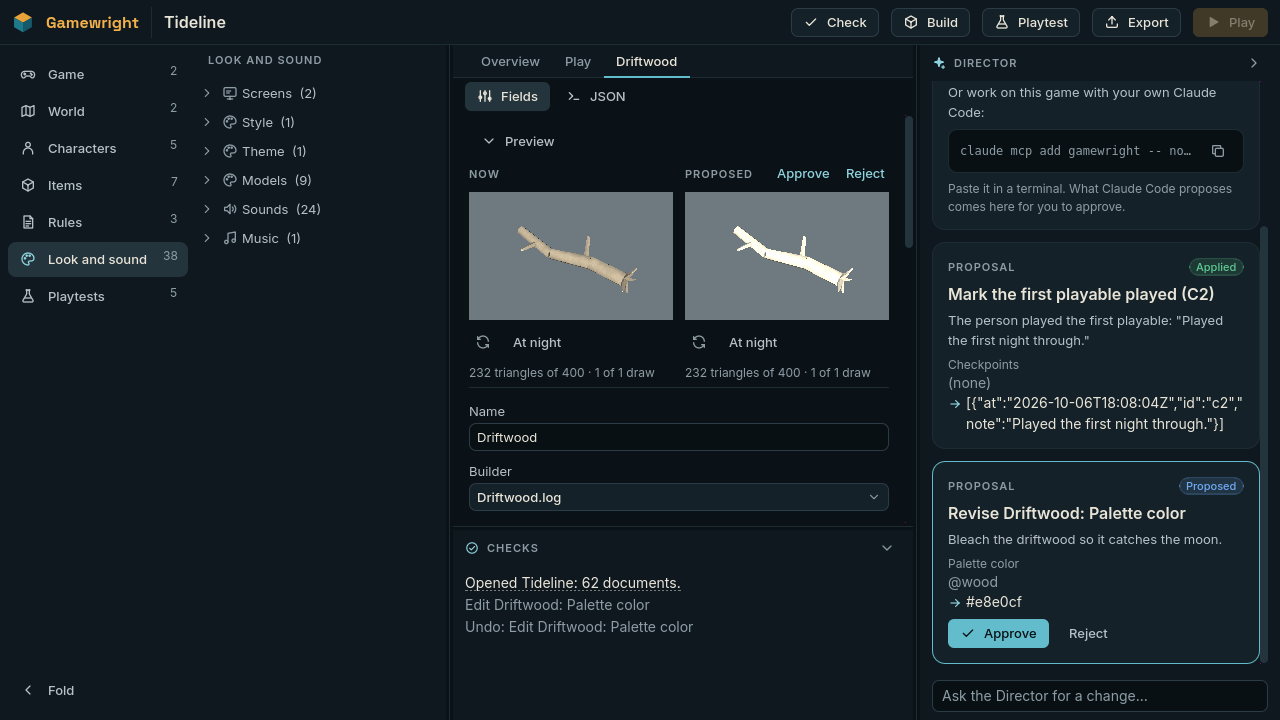
A proposal made over MCP, "bleach the driftwood so it catches the moon", shown beside the driftwood as it is. A frame from the Studio's own test.
The preview folds away with the arrow by its name, and its bottom edge drags to make it taller; the Studio remembers both. Previews build in the background, so the Studio never stops to wait for one, and their sounds play in the Studio only, never in the game you are playing.
Export it
File ▸ Export (Ctrl+E), or Export it on the game's start page, makes your game one zip anyone can download and play, for Linux, Windows, macOS or the web, with nothing else to install. Choose the system and where the zip goes, and press Export: the Studio builds the game, checks the build and packs it. The first export for a system downloads that system's player once and keeps it. Export says what each zip holds and how to share it.
Next
- A game from nothing: New game ▸ From nothing, and tell the Director what you want. It starts with the brief and stops for you at each checkpoint (the Director).
- Every panel and key: the Studio.
- What each check proves: the checks.